 ToDoops
How to use the time blocking planner
- Set the day. Pick the date and the hours you want to plan, for example 7:00 to 22:00.
- Create blocks. Drag down on the day to draw a block, or type one in Add a block. Every block snaps to 15 minutes.
- Arrange them. Drag a block to move it, drag its bottom edge to make it longer or shorter, and click it to rename it or give it a color: focus, meetings, admin, personal or break.
- Check the totals. Where your day goes adds up the time per color and shows how much of the day is still unplanned.
- Take it with you. Print it on one page (or save it as a PDF), copy it as text, or download an .ics file that adds every block to Apple Calendar, Google Calendar or Outlook.
Not sure where to start? Load an example day fills in a typical workday that you can edit.
What is time blocking?
Time blocking means planning your day as a series of blocks on the clock instead of a list of tasks. A to-do list says what to do; a time-blocked day also says when, and how long you are willing to spend on it. Because the day has only so many hours, it forces the trade-offs a list hides: if a three-hour task does not fit, you see it in the morning, not at 18:00.
How to time-block your day
- Start with what is fixed. Meetings, classes, school runs and lunch go in first.
- Protect your best hours for focus. Put the hardest work in the time of day when you think most clearly, and make those blocks at least an hour long.
- Batch the small stuff. Email, messages and admin go into one or two blocks instead of all day long.
- Leave buffers. Things take longer than planned. A free 15 or 30 minutes between big blocks keeps one delay from breaking the whole day.
- Plan breaks as blocks. If a break is not on the plan, it is the first thing to disappear.
- Re-plan without guilt. When the day changes, move the blocks. The plan is a tool, not a promise.
Combine it with a focus timer
A block says when to work; a timer helps you actually stay on it. Inside a two-hour focus block you can run two rounds of the 52/17 rhythm, or four Pomodoros with short breaks.
52/17 TimerWork 52 minutes, break 17, with a chime and a plan for your day.For the week ahead, decide which days get your big focus blocks in the weekly planner, then block each day here.
FAQ
What is the difference between time blocking and a to-do list?
A to-do list holds tasks without times. Time blocking puts those tasks on the clock, with a start and an end, so you can see whether the day is realistic before it starts.
How long should a time block be?
For focused work, 60 to 120 minutes is a common range. Small tasks work better grouped into one 30 to 45 minute block. Use what fits your work and adjust after a few days.
Can I add my time blocks to Google Calendar or Apple Calendar?
Yes. Add to calendar (.ics) downloads a calendar file with one event per block. Open it on your Mac or iPhone to import it into Apple Calendar, or import it in Google Calendar or Outlook.
Can I print my time-blocked day?
Yes. Print or save as PDF prints the day on one portrait page with the hours, the blocks and their colors. Choose “Save as PDF” as the printer to get a file.
Is my plan saved?
Your blocks stay in your browser's local storage on this device. Nothing is sent to a server.
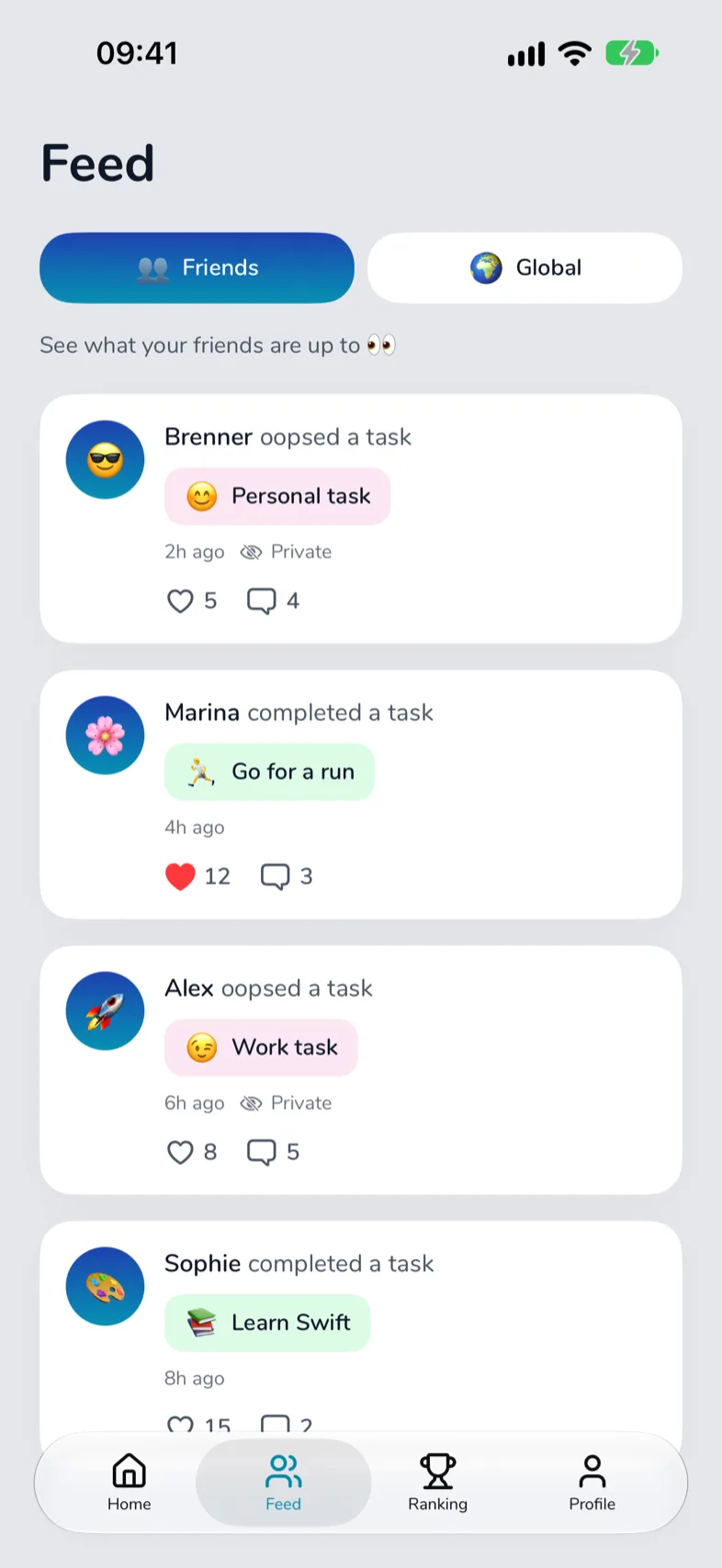
Turn your routine into a game with friends.
ToDoops keeps this kind of list for you: tasks that renew every day, a streak, and friends who cheer you on (or see your Oops).